 Avidemux
Editing
Joining and Appending Video Clips in Avidemux
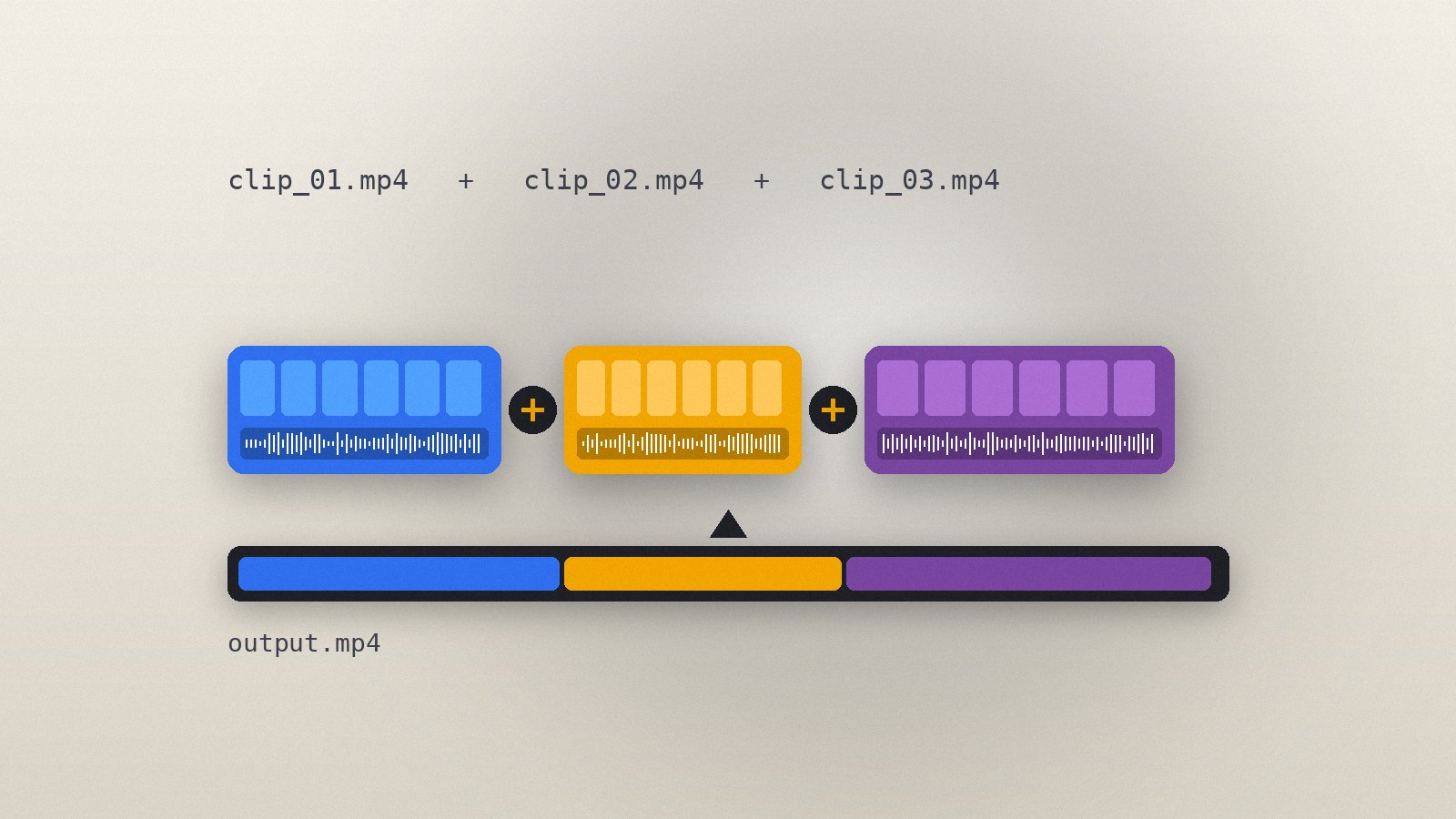
Append several clips into one file, what the clips must have in common and how to handle sources that do not match.
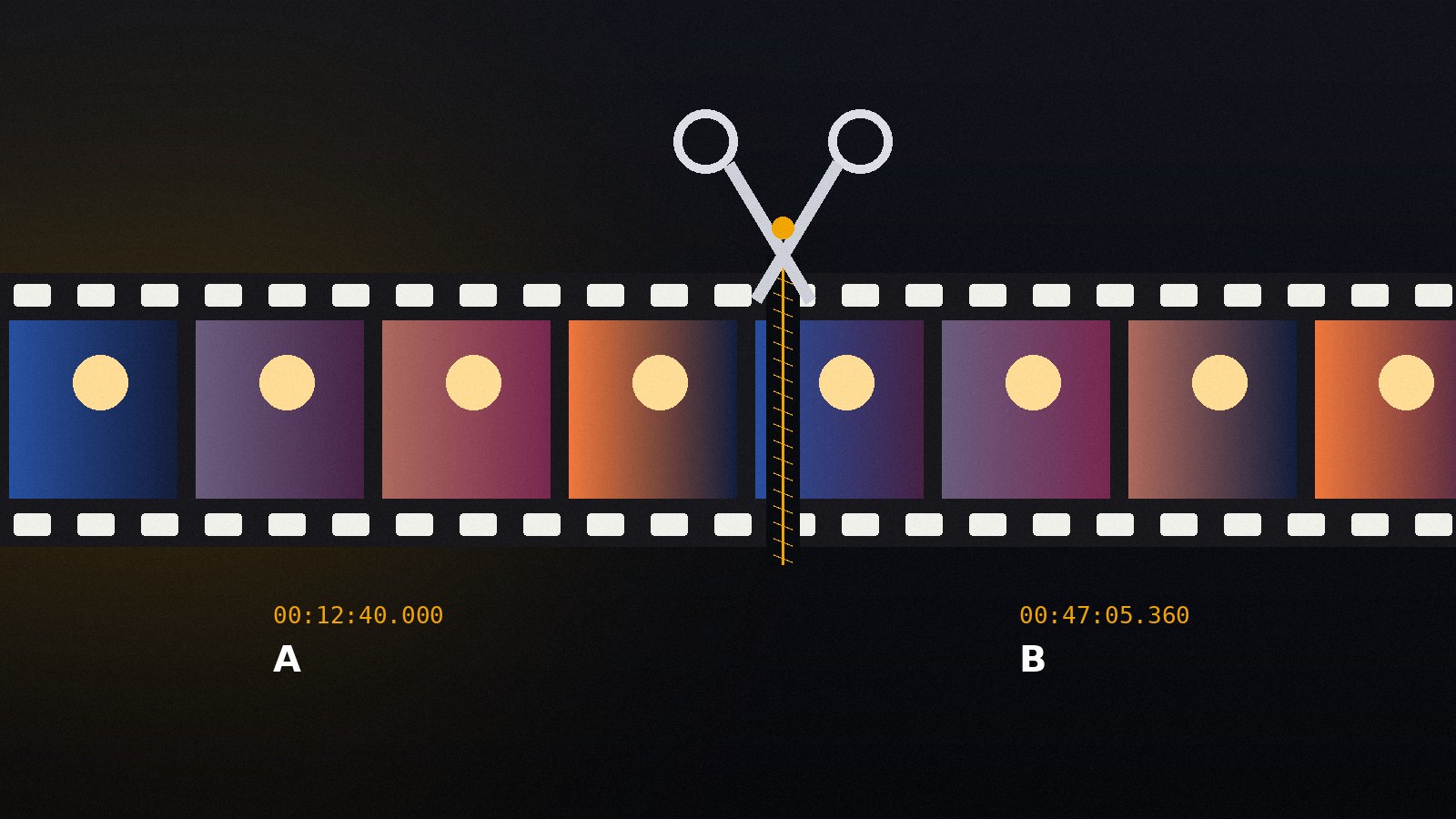
Read the guideThe most common job in Avidemux is removing parts of a file: ads from a recording, dead air at the start of a screen capture or a long tail at the end of a camera clip. In Copy mode the program does not touch the picture data at all, so the cut finishes in a few seconds and the output looks exactly like the source.
Drag the file into the window. In the left panel, set both Video Output and Audio Output to Copy. Pick an Output Format that matches the source, for example MP4 Muxer for an MP4 file or Mkv Muxer for MKV.
[ key).]).Repeat this for every section you want gone. The selection between A and B is shown in colour on the timeline, so it is easy to see what will be removed.
In Copy mode a cut can only start on a keyframe (an I-frame), because the frames that follow depend on it. Use the keyframe buttons (Up and Down arrows) to jump to the nearest one. Avidemux shows a warning if marker A sits on a non-keyframe and offers to move it. The end marker B can sit on any frame.
If you need frame-exact cuts on files with long keyframe intervals, the alternative is to re-encode just that file with a video codec. Expect a longer save and a small quality change.
To keep a single section instead of removing several, set A and B around the part you want and use Edit > Crop (keep selection). Everything outside the markers is dropped.
Choose File > Save, give the output a new name and wait a moment. The progress window closes when the muxer has finished writing the file.
Audio stays in sync because Avidemux cuts the audio stream at the same timestamps. If a file still drifts after the cut, check the audio sync guide.
Append several clips into one file, what the clips must have in common and how to handle sources that do not match.
Read the guide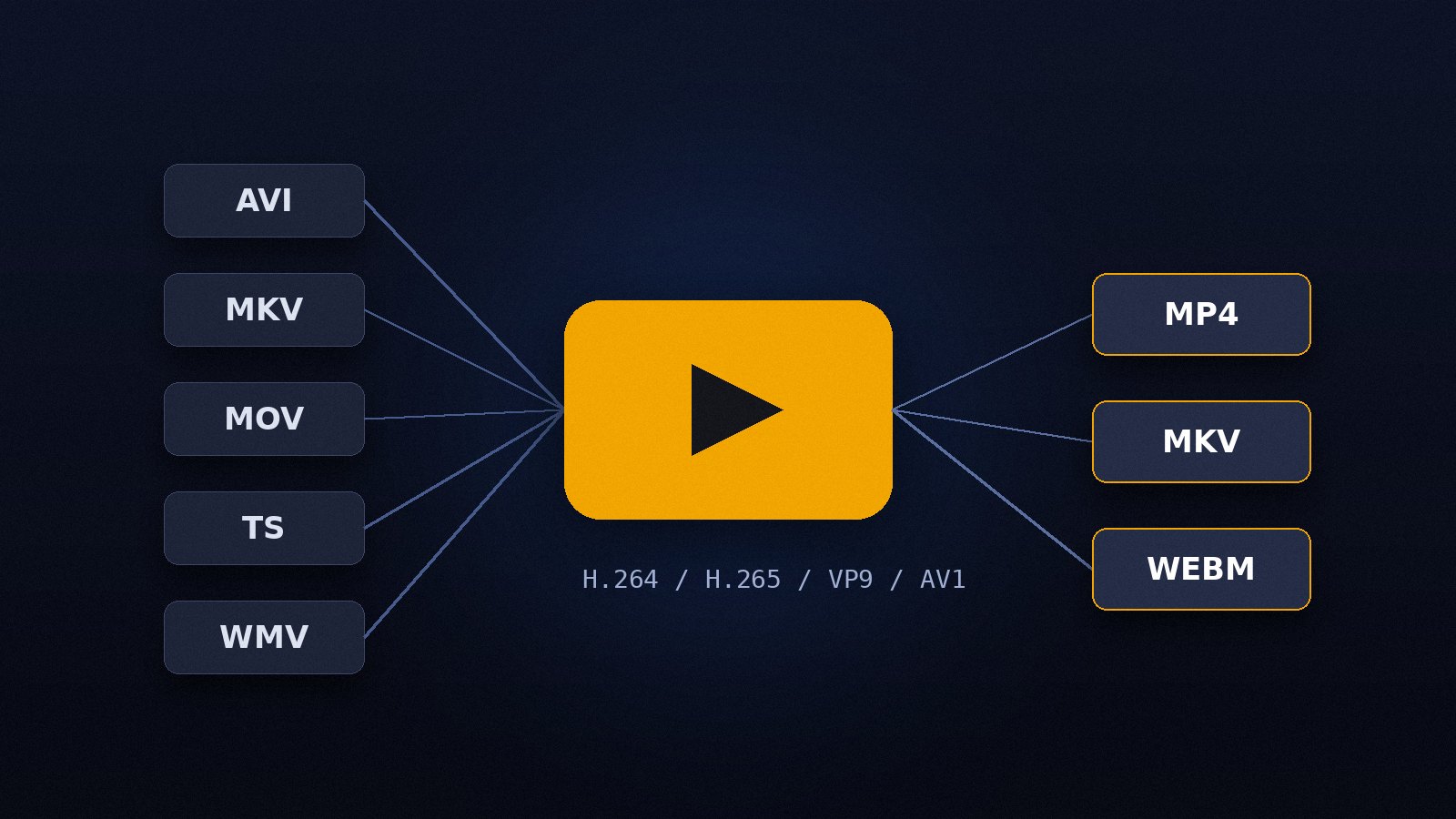
Change the container or re-encode the streams, understand the difference, and pick settings that play everywhere.
Read the guide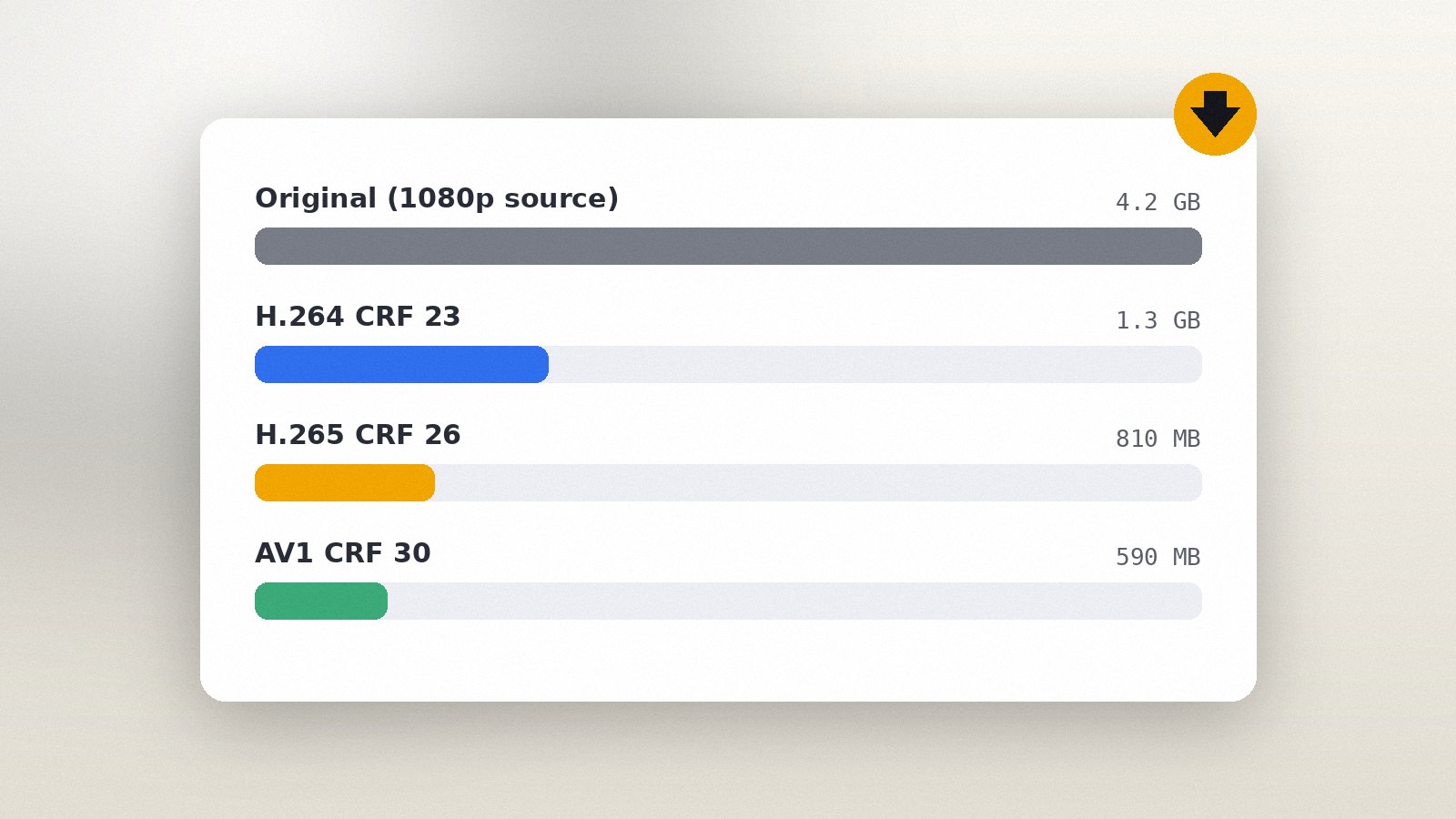
Reduce file size with CRF or a target size, choose presets wisely and keep the picture looking good.
Read the guide