 Avidemux
Filters
Adding Subtitles and Logos to Video in Avidemux
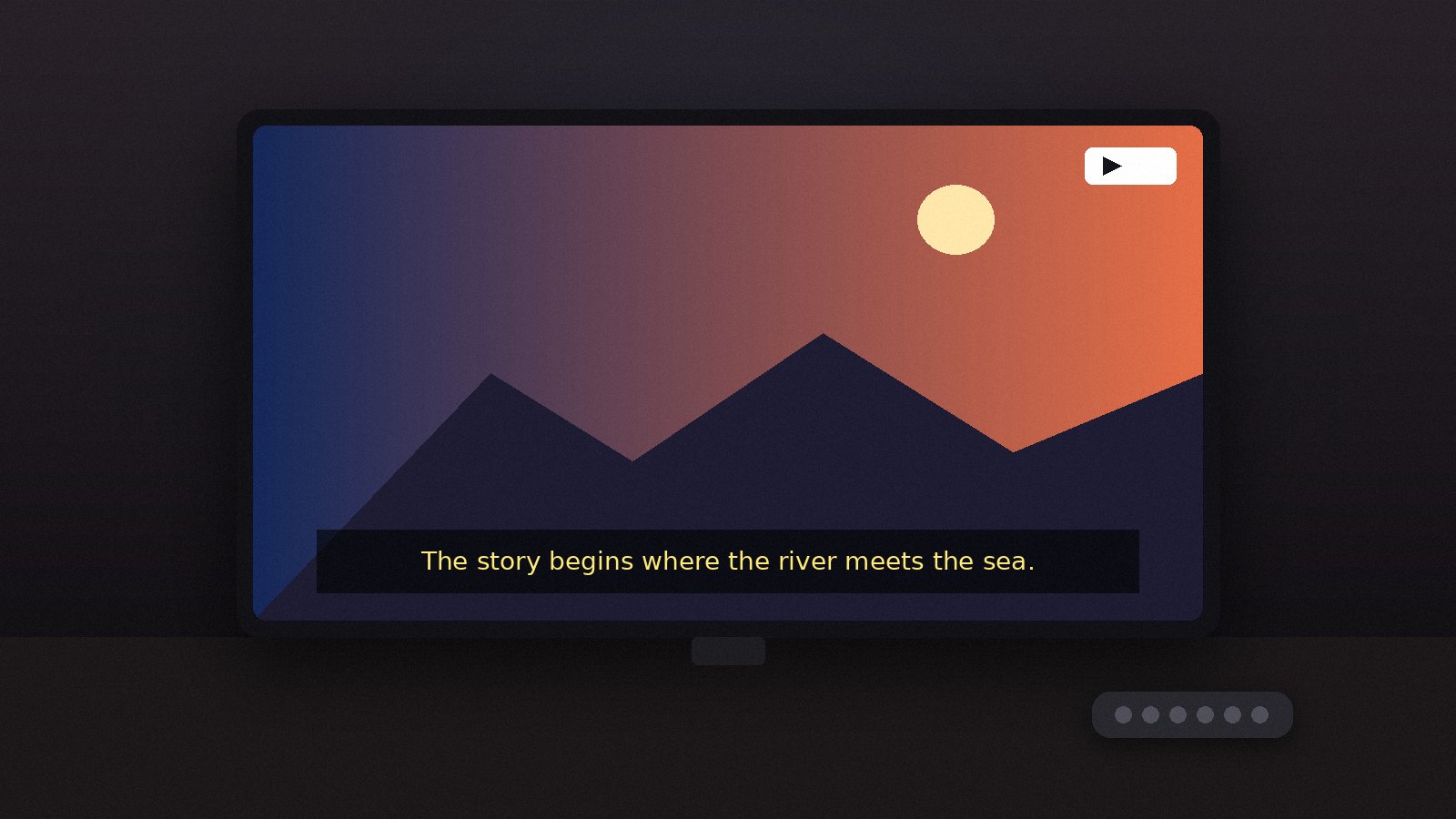
Burn SRT or ASS subtitles into the picture, choose fonts and position, and overlay a logo or watermark.
Read the guideAudio problems are easy to fix in Avidemux once you know where the controls live. Everything described here is in the Audio menu and the Audio Output panel on the left.
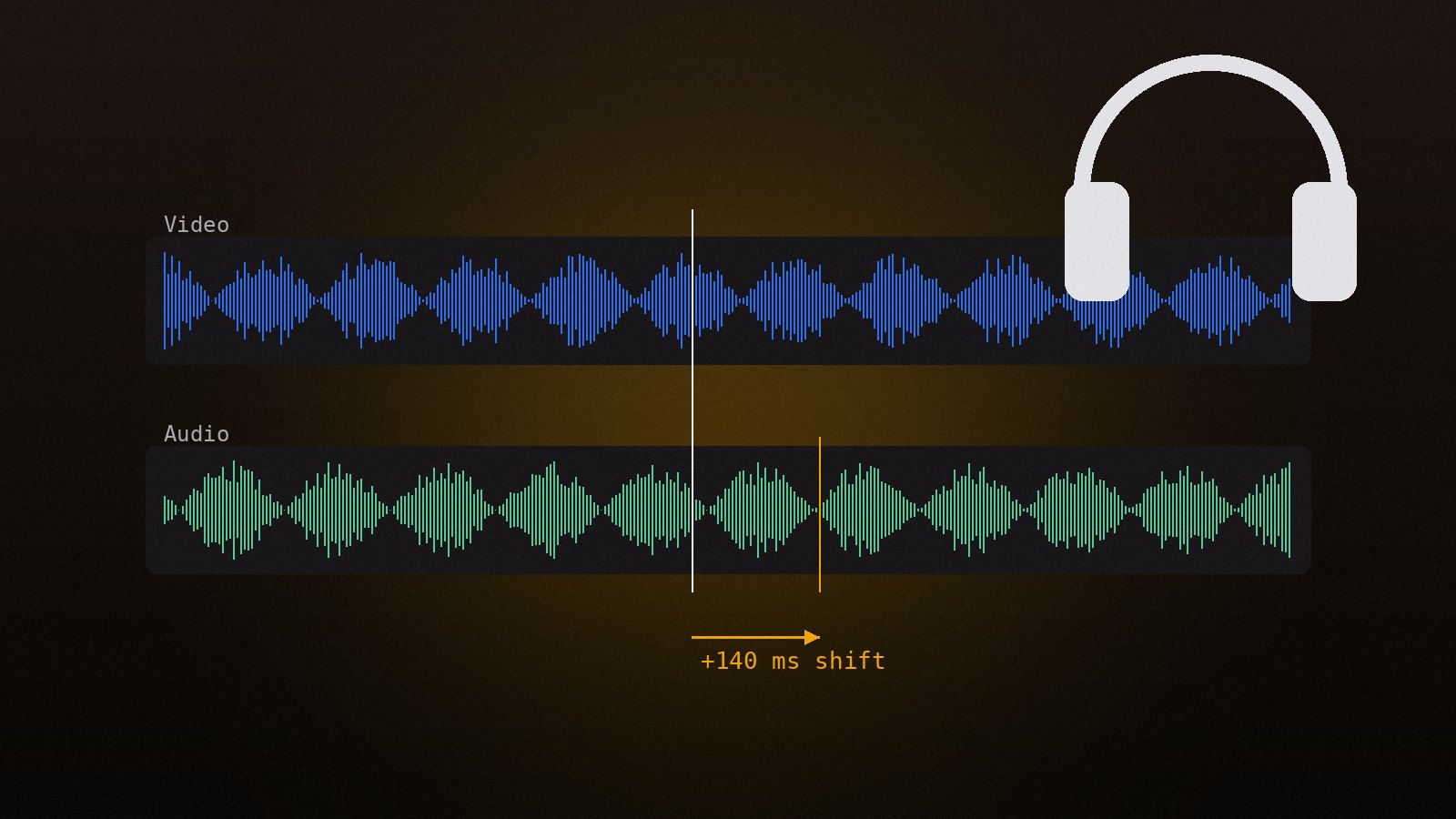
Play the file and find a visual cue with a clear sound, such as a door closing or a clap. Note whether the sound arrives before or after the picture. Then open Audio > Select Track, tick Shift next to the track and enter the offset in milliseconds. Positive values delay the audio; negative values bring it forward. Preview, adjust, and save with Audio Output on Copy.
If sync drifts over time instead of being a fixed offset, the frame rate of the video and the sample rate of the audio disagree. Re-encode the video with a Change FPS filter set to the rate the audio expects, or resample the audio through the AAC encoder's filter options.
Audio > Select Track lists up to four slots. Choose Add audio track and pick an external file (MP3, AAC, AC3, WAV or a video file whose audio you want). The new track can replace the original or sit alongside it; MKV and MP4 both carry several tracks and players let viewers switch.
Pick an audio encoder (AAC, MP3, AC3 or Vorbis) and open Filters in the Audio Output panel. There you can:
Keep Video Output on Copy, set Audio Output to AAC (FDK or lav) and save. Only the audio is re-encoded, so the job is fast and the picture stays untouched. This is the usual fix for AC3 or DTS tracks that a phone or browser will not play.
Always check the end of the file as well as the start. An offset that looks right in the first minute but drifts later points to a frame rate mismatch rather than a simple shift.
Burn SRT or ASS subtitles into the picture, choose fonts and position, and overlay a logo or watermark.
Read the guide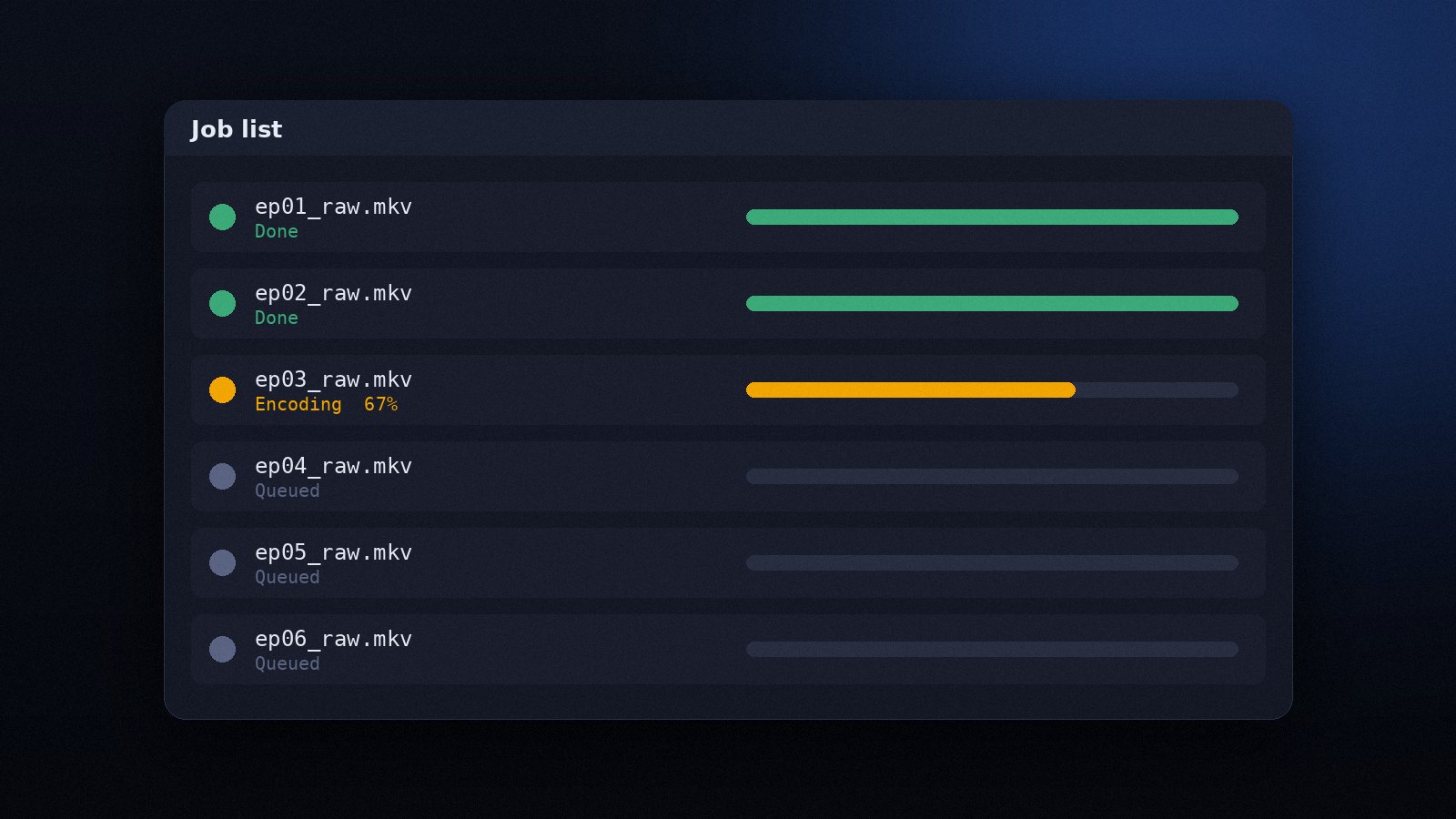
Queue many files, save projects as scripts and run Avidemux from the command line to process folders unattended.
Read the guide
Get Avidemux running on any desktop system, pick the right build for your hardware and check the installation works.
Read the guide